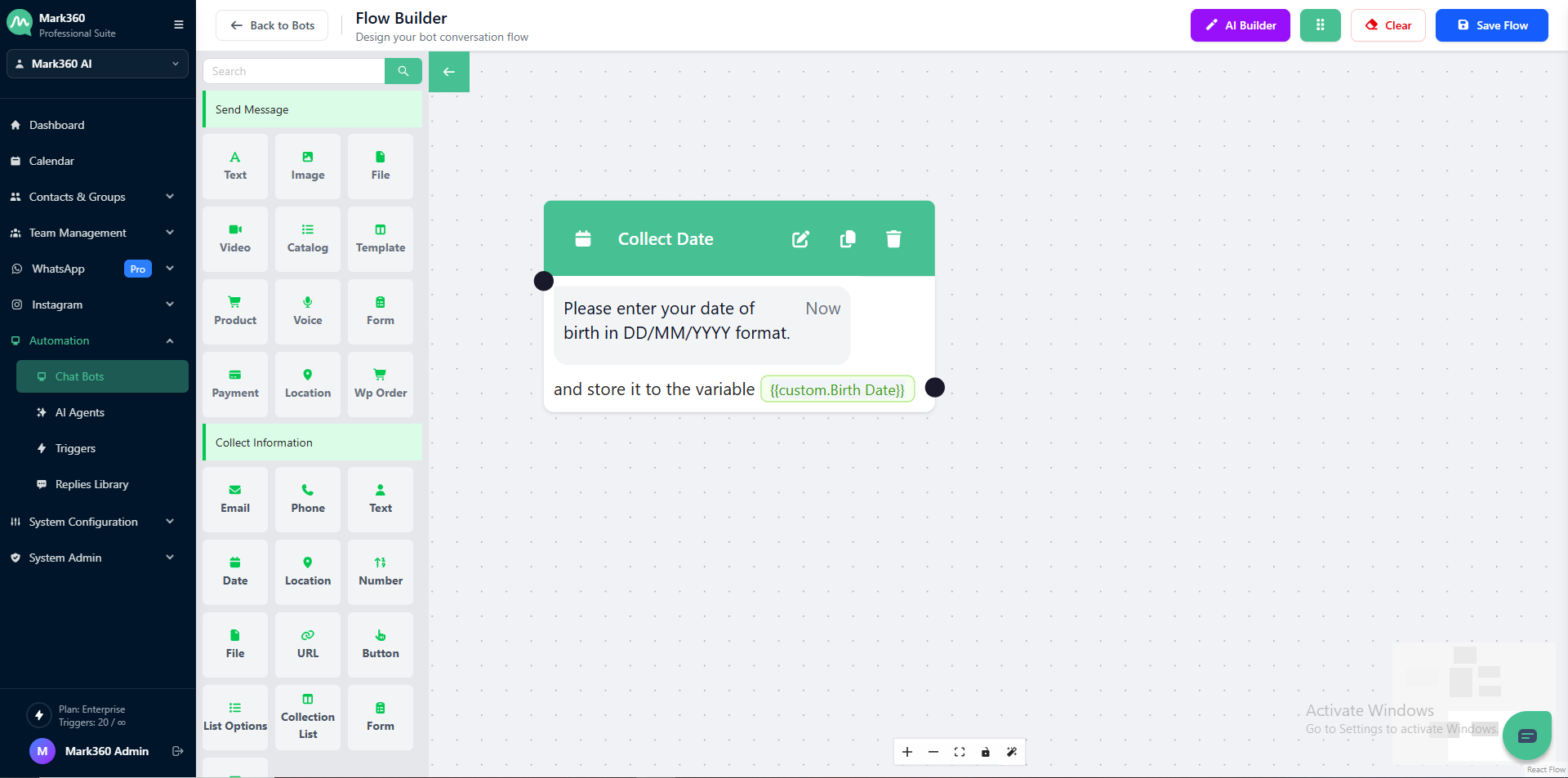
Collect Date
The Collect Date card in Mark360 allows your bot to request a date input from users and validate it using custom rules. You can customize the question, define how responses are stored, and apply validation settings to ensure accuracy.
Overview
Ask date from your customer by using Ask Date card.
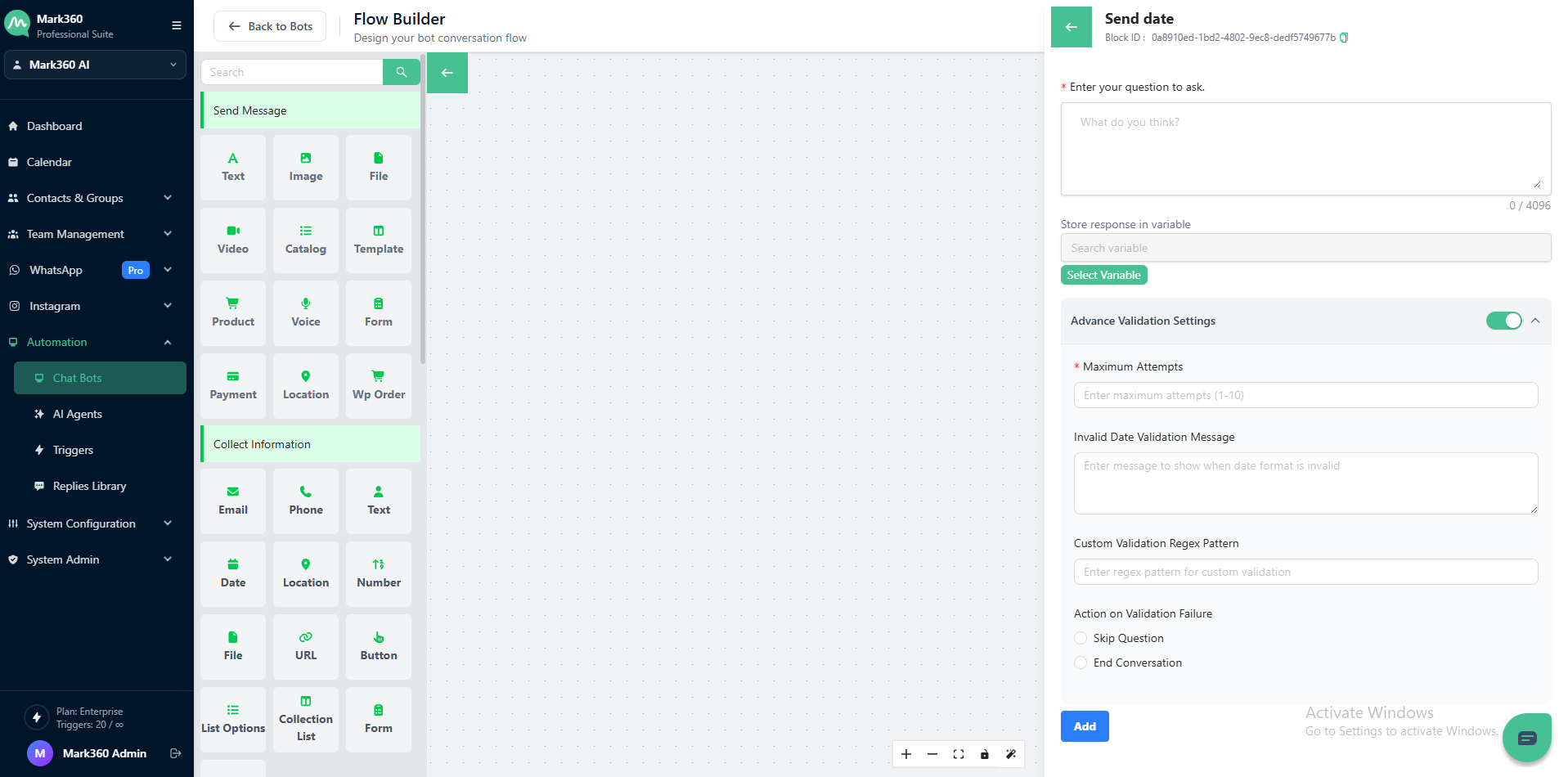
Enter Your Question to Ask
This is the message or prompt that appears to the user.
Clearly specify the required date format (e.g., DD/MM/YYYY or YYYY-MM-DD) so users know how to respond.
💬 Example: “Please enter your date of birth in DD/MM/YYYY format.”
Store Response in Variable
Select or create a variable to store the user’s response.
This stored date can be used later in your workflow — for example, to calculate age, schedule reminders, or send time-based messages.
Example Variable:
user_dob
Advanced Validation Settings
Enable Advanced Validation Settings to ensure only valid date formats are accepted.
Maximum Attempts
Set how many times a user can retry entering a valid date.
Example: 3 attempts
Invalid Date Validation Message
Provide a message to display if the user enters a date in an incorrect format.
Example: “Please enter the date in DD/MM/YYYY format.”
Custom Validation Regex Pattern*
Add a regex pattern to define your custom validation rule.
Example Regex for DD/MM/YYYY format:
^(0[1-9]|[12][0-9]|3[01])/(0[1-9]|1[0-2])/[0-9]{4}$
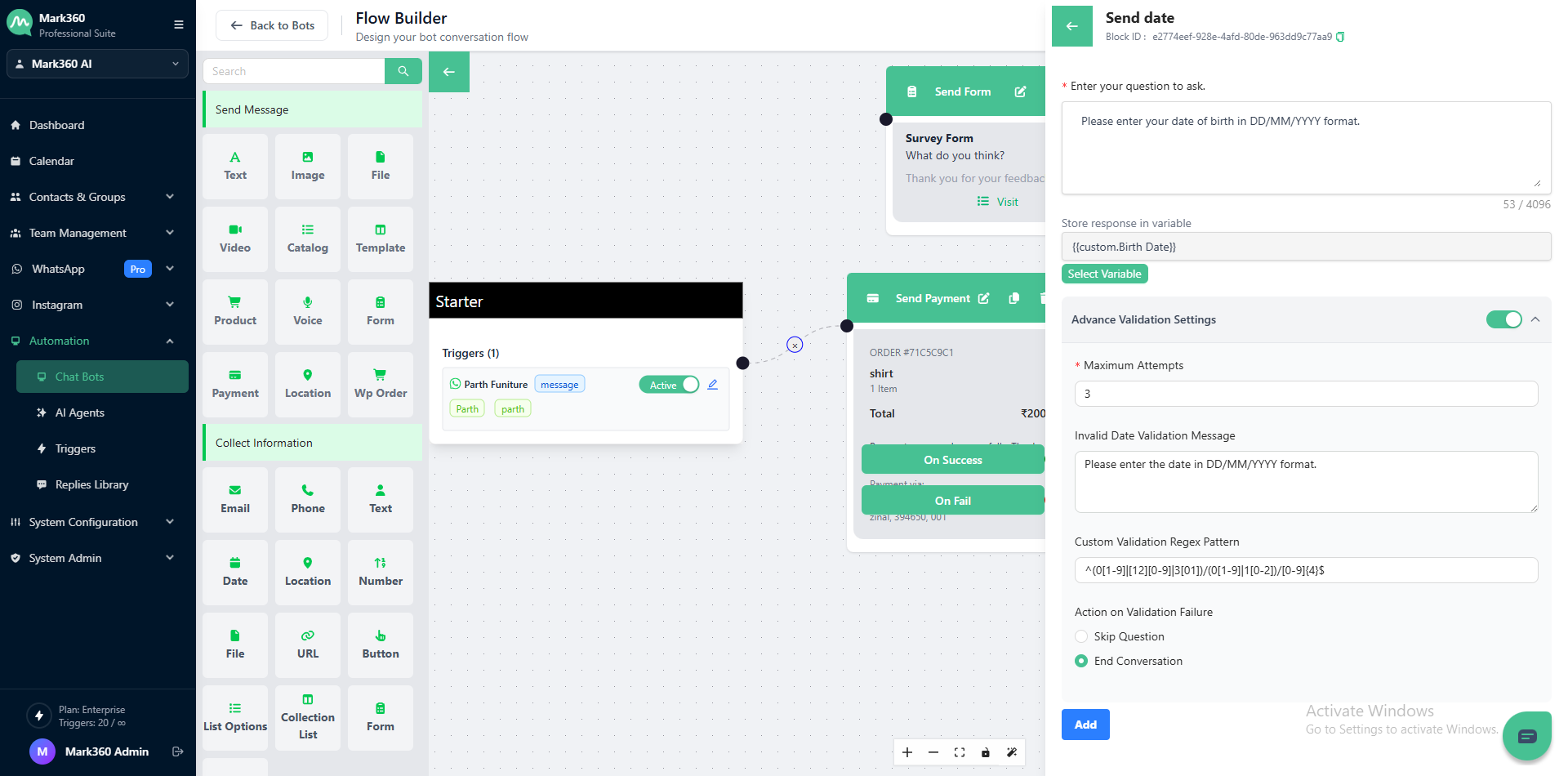
In Mark360 Bot Interface: